


Checking out a drone
[%PLANS_ENT%]
Pilots can check out a drone from inventory from the EQUIPMENT -> DRONES dashboard, or through the use of the drone's equipment QR code.
All activity for a piece of equipment is logged in the "Assignment History" and "Pilot Usage History" tabs.
This helps Enterprise Admins to maintain a clear chain of custody with location and activity data.
You can bundle drones, batteries, and associated accessories into Equipment Kits.
These items can be tracked under one QR code, allowing you to check out multiple items at once.
Please see this help article for detailed instructions on creating Equipment Kits: https://app.airdata.com/wiki/Help/Kits
All activity for a piece of equipment is logged in the "Assignment History" and "Pilot Usage History" tabs.
This helps Enterprise Admins to maintain a clear chain of custody with location and activity data.
You can bundle drones, batteries, and associated accessories into Equipment Kits.
These items can be tracked under one QR code, allowing you to check out multiple items at once.
Please see this help article for detailed instructions on creating Equipment Kits: https://app.airdata.com/wiki/Help/Kits
Watch related AirTime session
Drone Checkouts and QR Codes
Manually Editing a Drone’s Ownership/Assigned Pilots List
The list of pilots assigned to a drone can be viewed from the ASSIGNMENT -> Ownership tab of a drone profile.Pilots will automatically be added to a drone’s list of assigned pilots after they complete and upload flights with that drone.
Pilots with "Edit" permissions can check out drones from ASSIGNMENT -> Ownership
Admins can add and remove pilots from the Ownership list.
Important note: Please do not remove all pilots from the Ownership list.
At least one Owner is needed in order to receive Maintenance notifications for that drone.
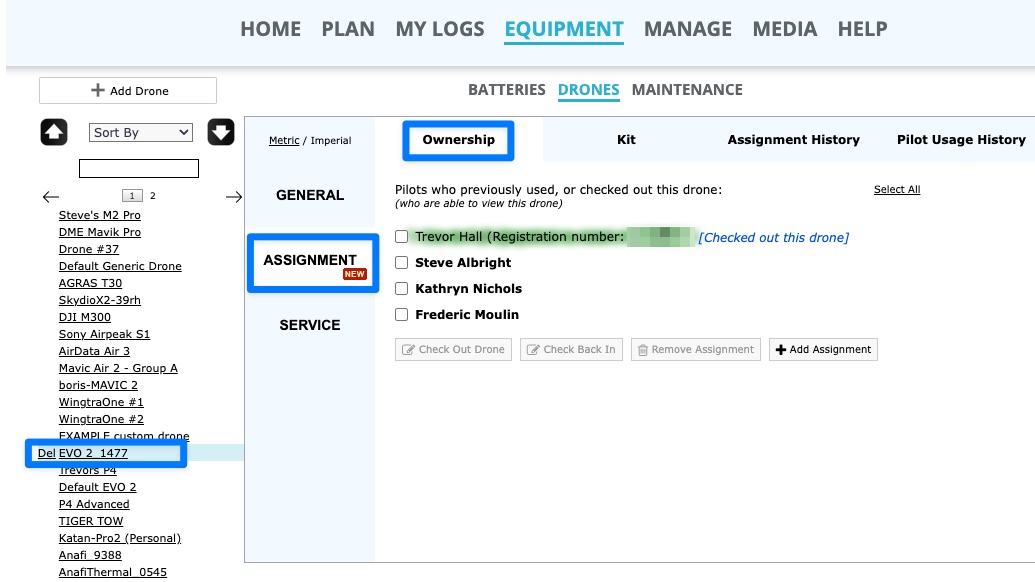
This can be done by:
1. Heading to EQUIPMENT -> DRONES,
2. Clicking the +Add Assignment button from an individual drone profile.
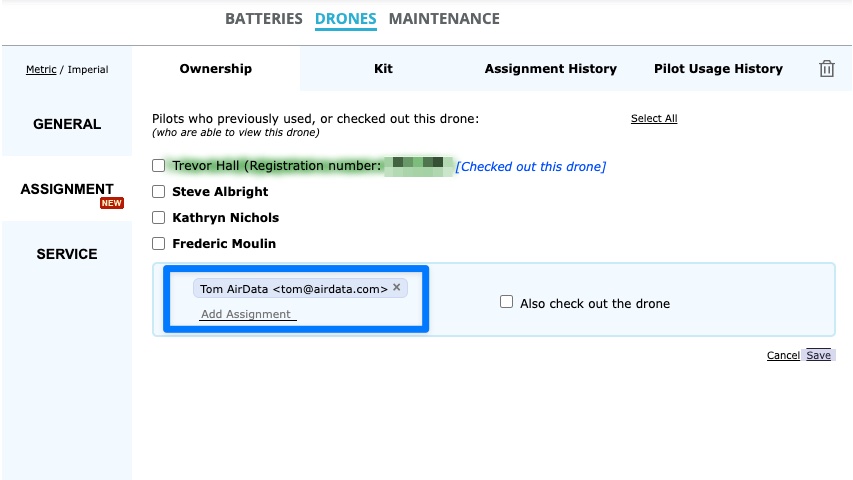
How to Check Out a Drone
A drone can be checked out in two ways: through the EQUIPMENT -> DRONES dashboard, or using the drone's equipment QR code.Please note pilots will need the "Edit" permission in order to check out a drone.
1. EQUIPMENT -> DRONES Page
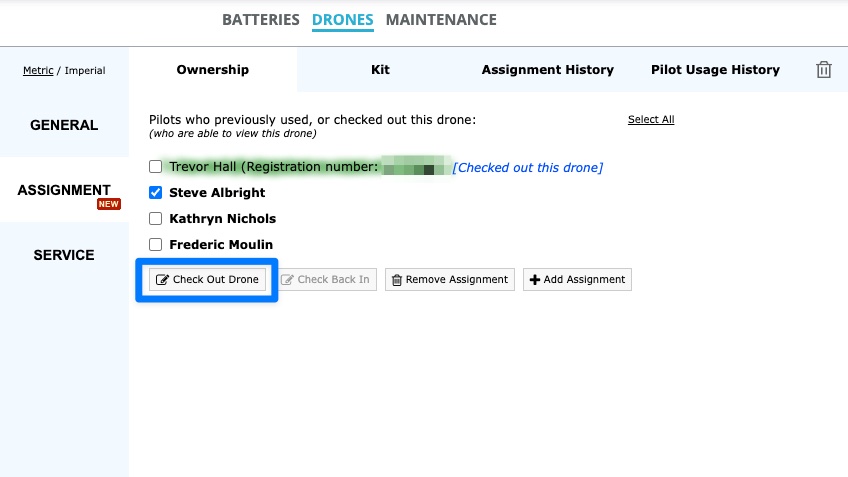
To check a drone out to an existing pilot on the Ownership/Assigned Pilots list, follow the steps below.
i. Head to EQUIPMENT -> DRONES,
ii. Open the individual drone profile,
iii. Check the name of the Pilot,
iv. Click “Check Out Drone”.
A message reading “[Checked out this drone]” will display next to the current custody owner of the drone.
This tab also allows users to check drones back in and to remove personnel from the list of assigned pilots.
AirData provides organizations with the ability to print QR code labels that can be attached to equipment for a variety of uses.
The AirData QR code labels provide the following functionality.
1) Equipment Lost and Found: Anyone who comes across a lost item can use the QR code to anonymously message the owner.
2) Equipment Location Register: Each time someone scans a QR code, AirData will record the location of the scan under the "Pilot Usage History" tab.
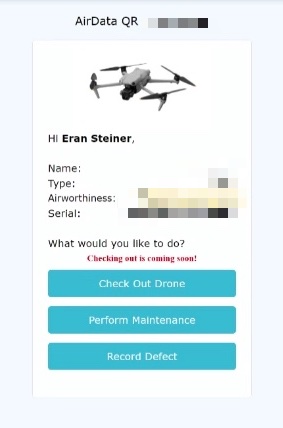
3) Equipment Check Out/Check In: Pilots can check out an item by scanning the QR code and clicking “Check Out Drone”.
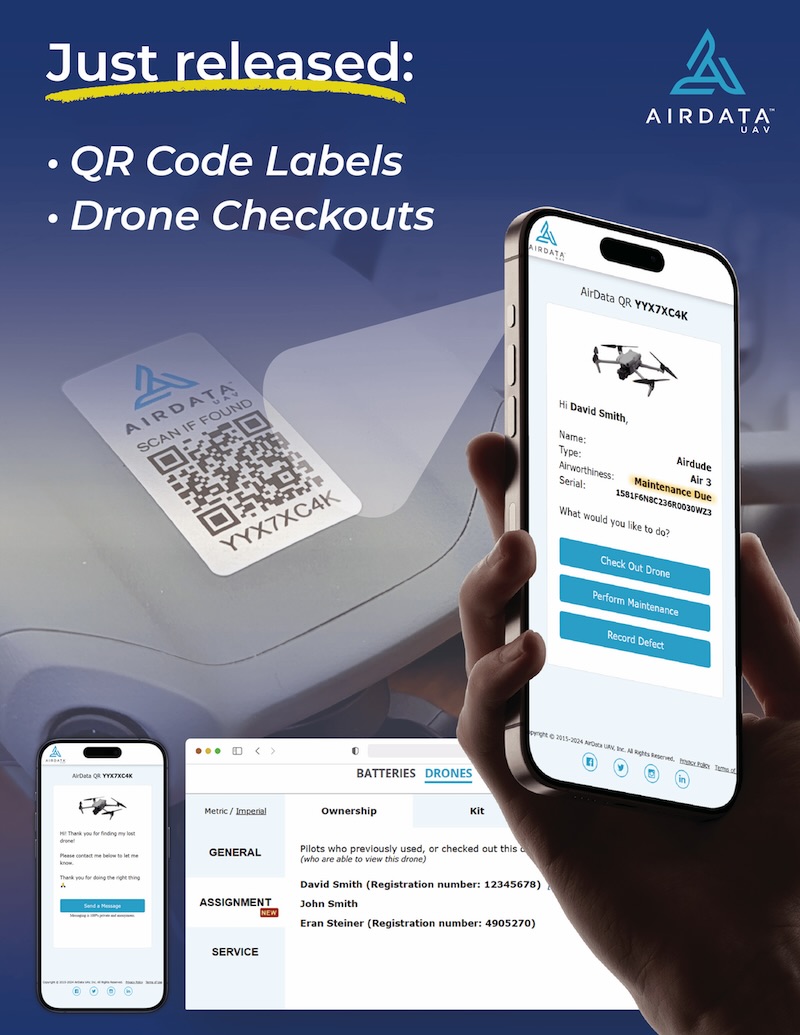
Pilots can check out a drone by:
i) Scanning the QR code with their mobile device,
ii) Tapping "Check Out Drone".
Drone Equipment Kit
You can bundle drones, batteries, and associated accessories into Equipment Kits.These items can be tracked under one QR code, allowing you to check out multiple items at once.
Please see this help article for detailed instructions on creating Equipment Kits: https://app.airdata.com/wiki/Help/Kits
Drone Assignment History
A drone’s ASSIGNMENT -> Assignment History tab shows the Dates and Times for when a pilot checked out the drone.Drone Usage History
A drone’s ASSIGNMENT -> Usage History tab shows the drone’s flight usage history. This tab records the Date-Time, Pilot-in-Command, Location, and Custody Owner for each drone flight record in AirData.FAQ
How do I find my AirData QR code?
AirData provides templates for QR code labels that can be printed out by your organization.
| Comment Section | Sort by:
|


Please login to add a comment