


Zephyr Simulator
[%PLANS_ALL%]
This article provides instructions on syncing your Zephyr Drone Simulator records from zephyr-sim.com to AirData.
1. Retrieve Your AirData Auto Upload Token
2. Link Zephyr to AirData
3. Sync Historical Zephyr Flights
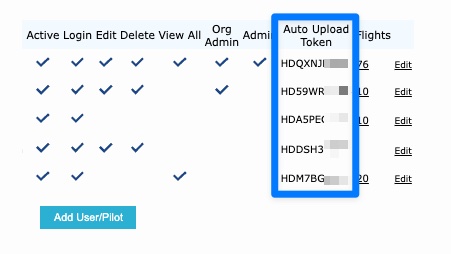
2. Administrators: If you would like to retrieve the Auto Upload Tokens for all of your pilots, head to My Account -> Users/Pilots to see a list of Auto Upload Tokens.
You can copy this list of Tokens into a spreadsheet app like Microsoft Excel or Google Sheets.
1. Login to your account on zephyr-sim.com
2. Go to Settings
a. Click your portrait on the left-hand menu
b. Or click the “Settings Cog” in the navigation bar
3. Click Linked Accounts
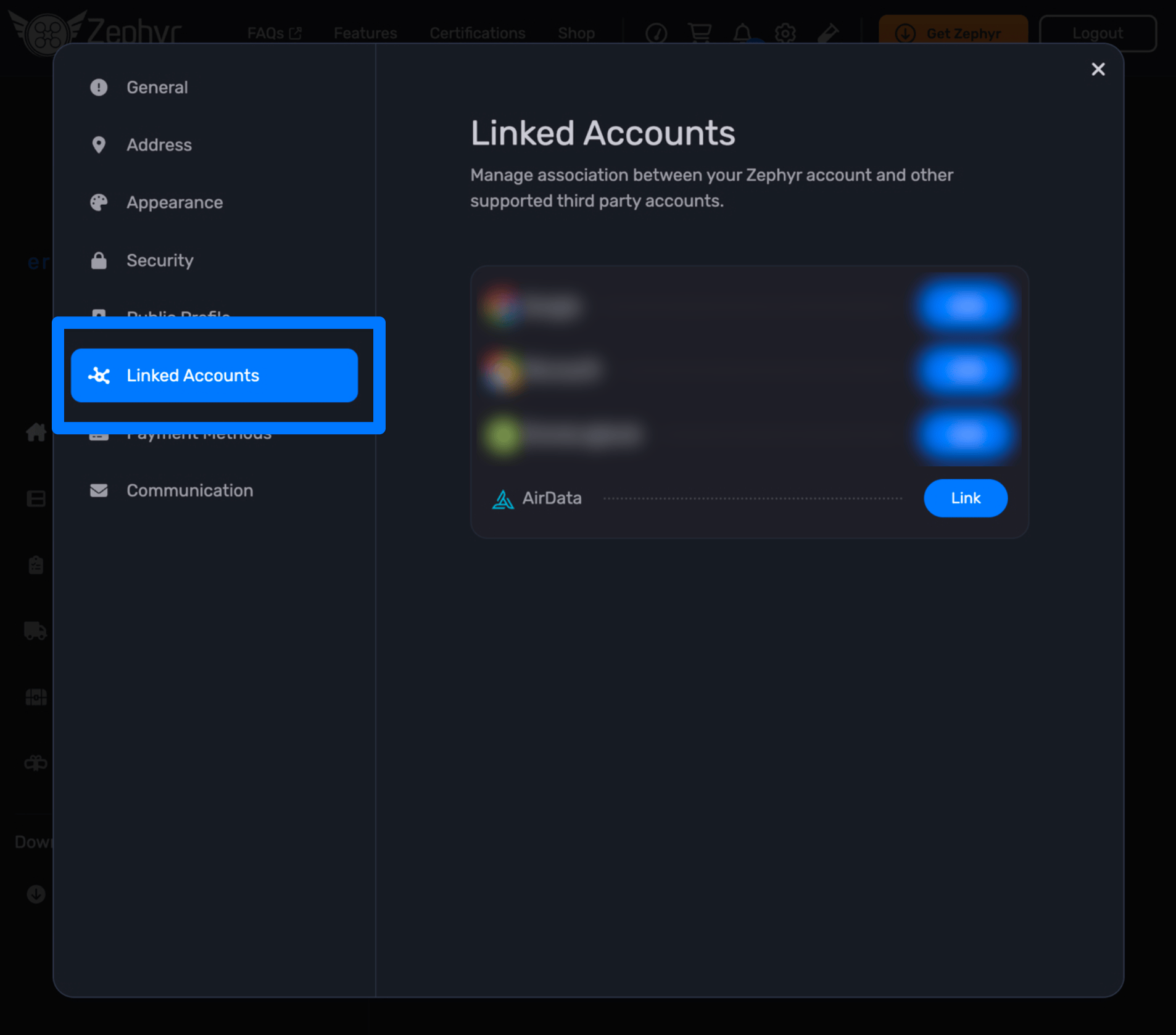
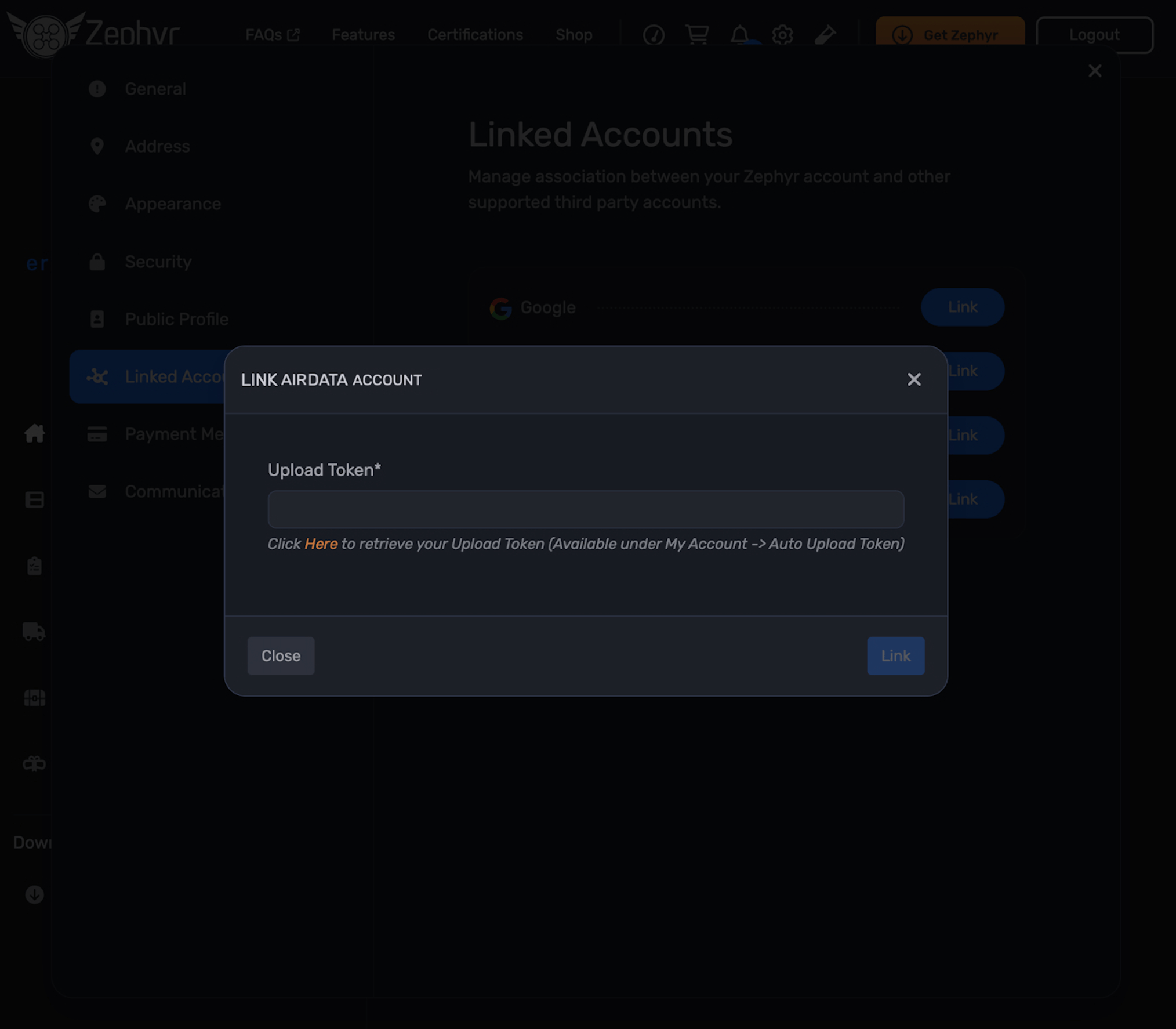
4. Click Link next to the AirData entry
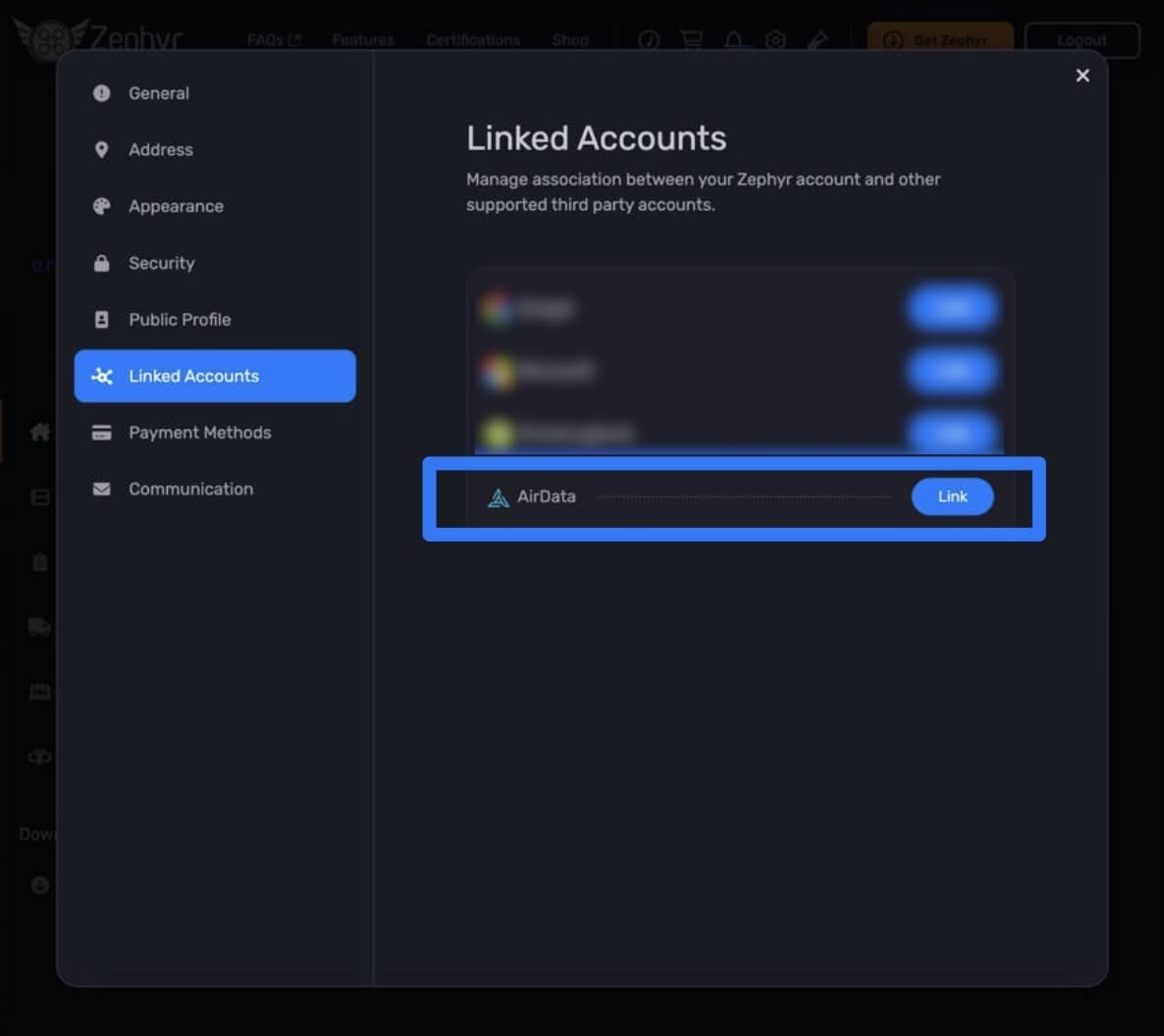
5. Paste your Auto Upload Token and click Link. If successful, new Zephyr flights will be synced automatically to your AirData account.
If you have older flight data that was not synced to AirData before you linked your accounts, you can attempt to re-sync them
Please note: Flights created before 11/26/2020 cannot be synced to AirData.
1. Log in to your Zephyr account on zephyr-sim.com
2. Click on the “REPORTS” tab on the left-hand menu.
3. If your AirData account is linked, you will see a “Sync Air Data” button available at the top of the reports table.
4. Depending on the number of syncable reports, this process can take up to a few minutes to finish. You will receive an email when the sync process finishes. At that time you can refresh the reports page or log back in to verify your reports have been synced.
This article provides instructions on syncing your Zephyr Drone Simulator records from zephyr-sim.com to AirData.
1. Retrieve Your AirData Auto Upload Token
2. Link Zephyr to AirData
3. Sync Historical Zephyr Flights
Retrieve Your AirData Auto Upload Token
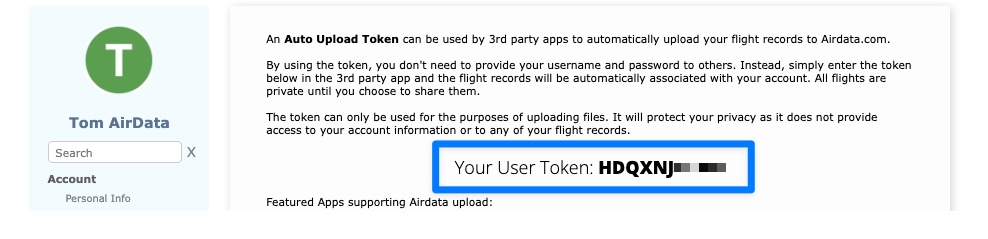
1. Pilots: To locate your individual AirData Auto Upload Token, head to app.airdata.com -> My Account -> Auto Upload TokenYou can copy this list of Tokens into a spreadsheet app like Microsoft Excel or Google Sheets.
Link Zephyr to AirData
1. Login to your account on zephyr-sim.com
2. Go to Settings
a. Click your portrait on the left-hand menu
b. Or click the “Settings Cog” in the navigation bar
3. Click Linked Accounts
Sync Historical Zephyr Flights
If you have older flight data that was not synced to AirData before you linked your accounts, you can attempt to re-sync them
Please note: Flights created before 11/26/2020 cannot be synced to AirData.
1. Log in to your Zephyr account on zephyr-sim.com
2. Click on the “REPORTS” tab on the left-hand menu.
3. If your AirData account is linked, you will see a “Sync Air Data” button available at the top of the reports table.
4. Depending on the number of syncable reports, this process can take up to a few minutes to finish. You will receive an email when the sync process finishes. At that time you can refresh the reports page or log back in to verify your reports have been synced.
| Comment Section | Sort by:
|


Please login to add a comment