


Updated Sync Method for Android Devices
[%PLANS_ALL%]
Overview
Our engineers have developed a streamlined upload method for users of Android 12 to 16 devices affected by Google’s new storage security changes.
This allows you to upload new flight logs from within the AirData UAV mobile app without installing any third party apps.
Note that devices unaffected by these storage changes (mostly older phones and smart remote controllers) can continue using AirData’s original Auto Sync feature without any changes.
Getting Started
The video below provides an overview of the upload process. For written instructions, keep reading.
Please make sure you have the newest version of the AirData UAV mobile app installed.
You will need Version 2.2.9.6 - Build 411, or newer.
Please find the official versions of the AirData app below.
Android Phone/Tablet: https://play.google.com/store/apps/details?id=com.airdata.uav.app
Smart Remote Controller: https://airdata.com/ad/
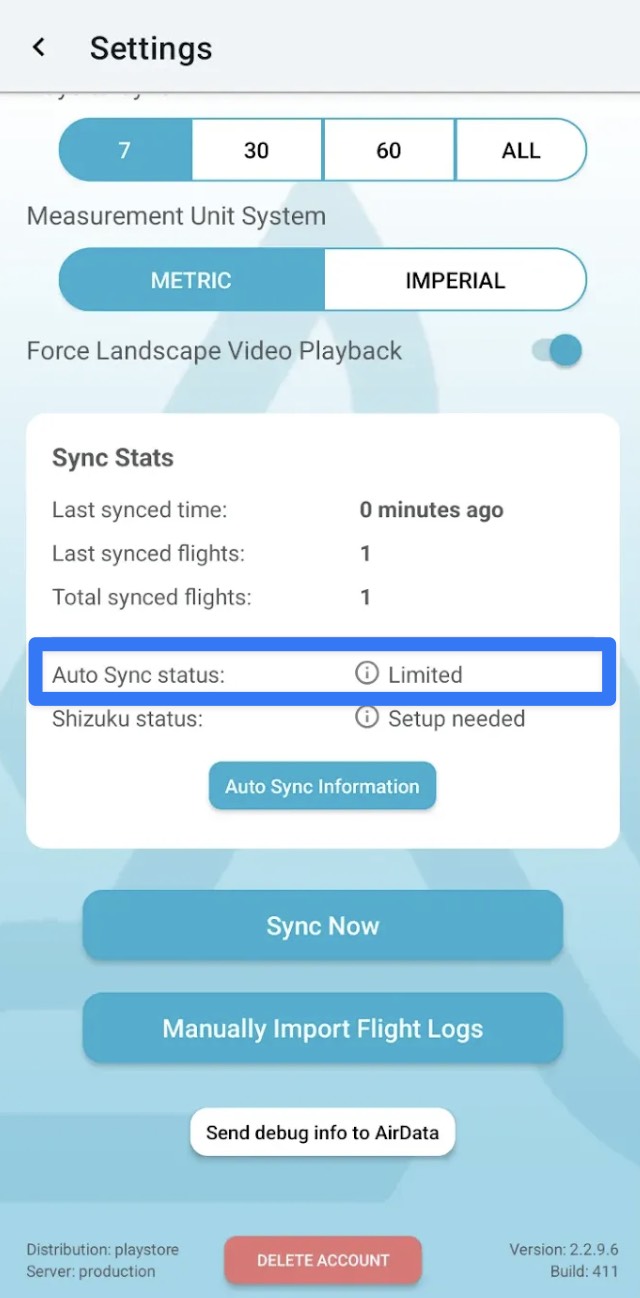
Once your app is up to date, log in and head to Settings -> Sync Stats
If you see that your Auto Sync status is “Limited”, you will be able to make use of this upload method.
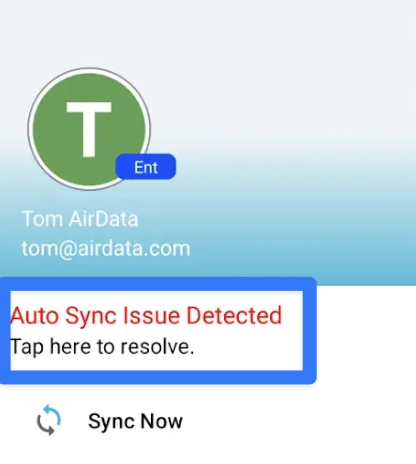
Alternatively, if you have Auto Sync enabled in the AirData App, you will see red text saying "Auto Sync Issue Detected" in the slide out menu.
Uploading Flights
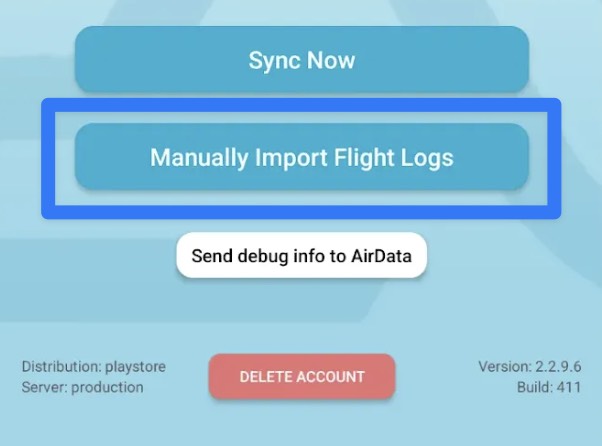
1. Head to the AirData UAV mobile app -> Settings -> Manually Import Flight Logs
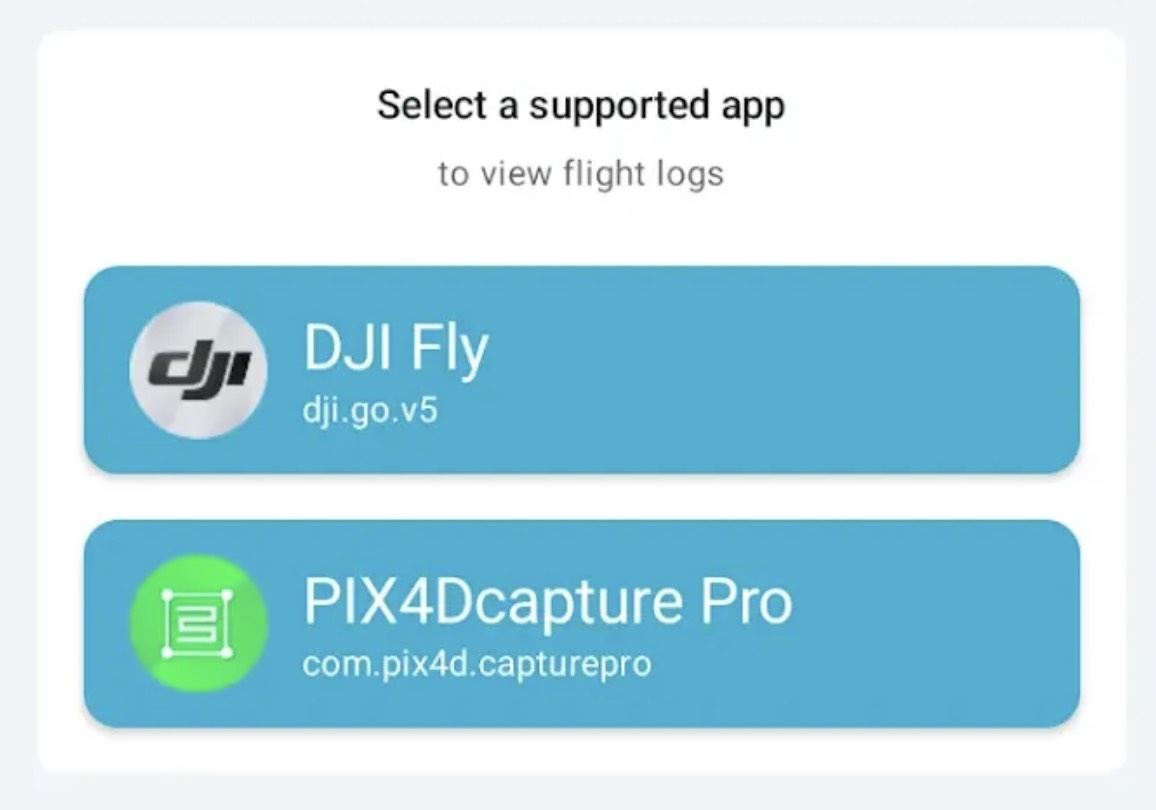
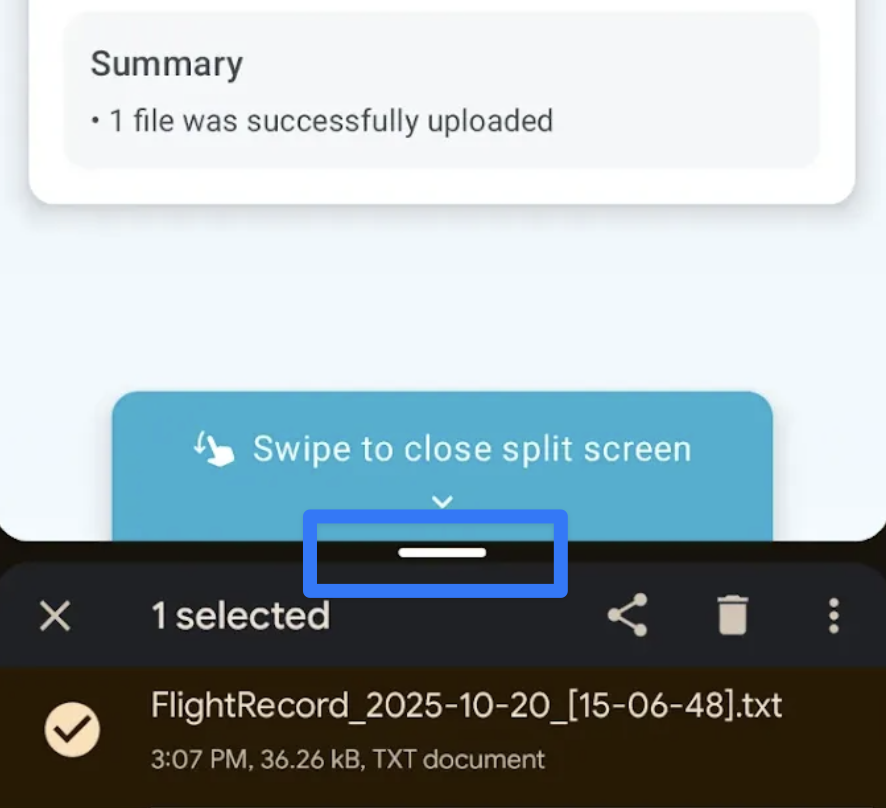
2. Select the flight app you wish to upload flights from. This will open a file finder on the bottom half of your screen.
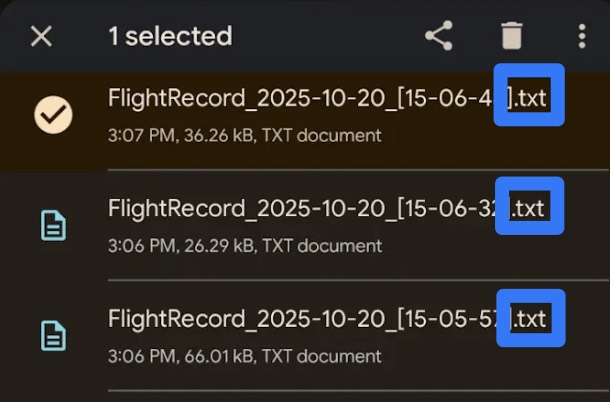
3. Verify that you see flight logs listed in the open folder.
Tip: With DJI apps, look for TXT files, not DAT files.
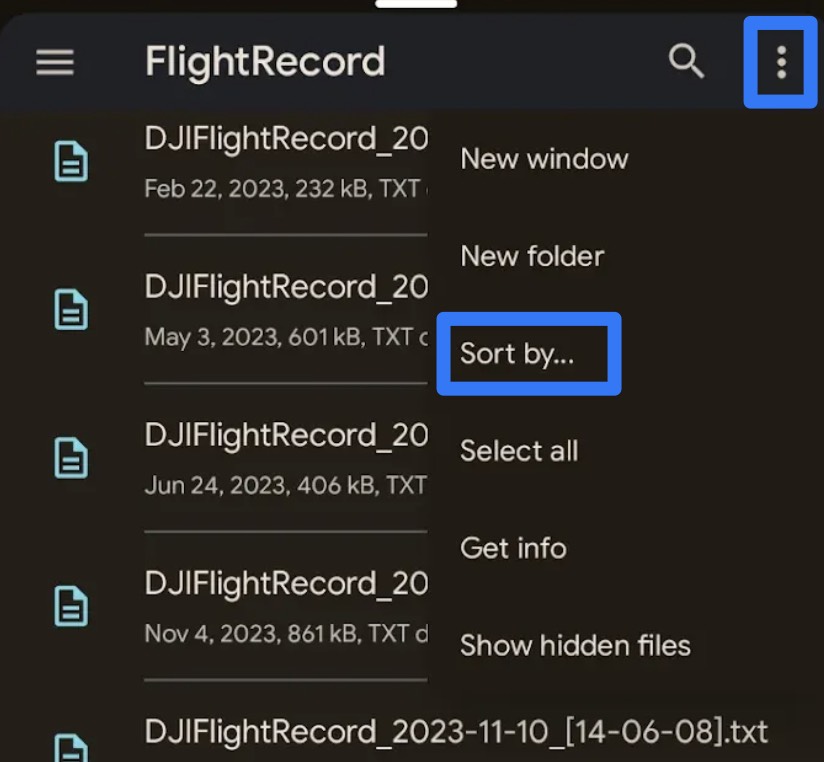
4. Tap the three dot menu to the top right of the file finder and tap Sort by… -> Modified (newest first) to sort for your newest flight logs.
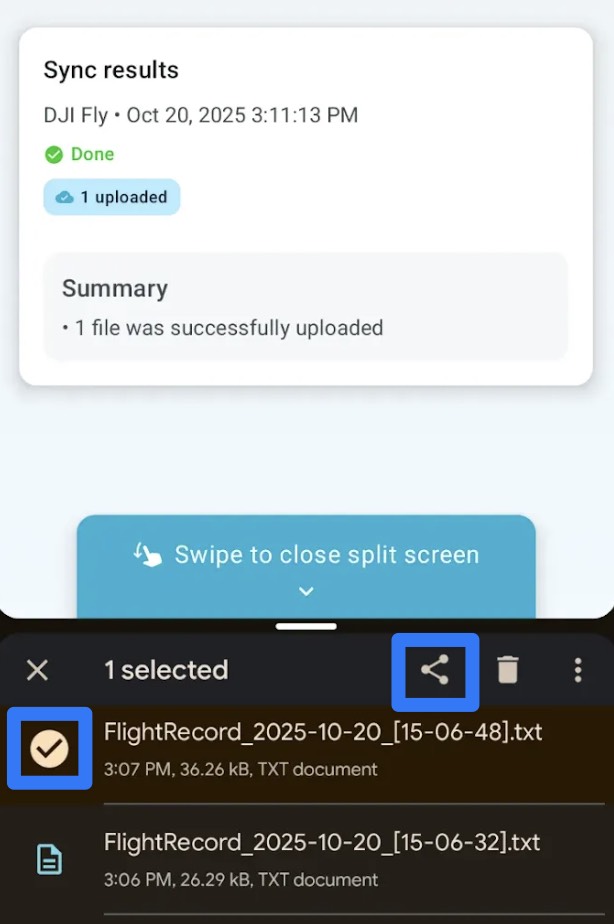
5. Long press on a file to begin selecting logs for upload. Then tap the sharing icon and select the AirData mobile app.
Tip: You may need to select a “More” option or scroll down in the sharing menu to see the AirData app icon.
6. After your selected flights upload, AirData will display a summary of how many files were uploaded.
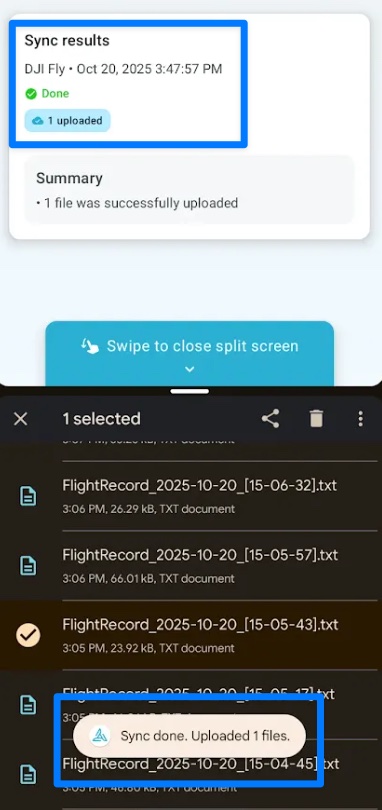
7. Swipe down from the middle of the screen to close the file finder.
Reviewing Upload History
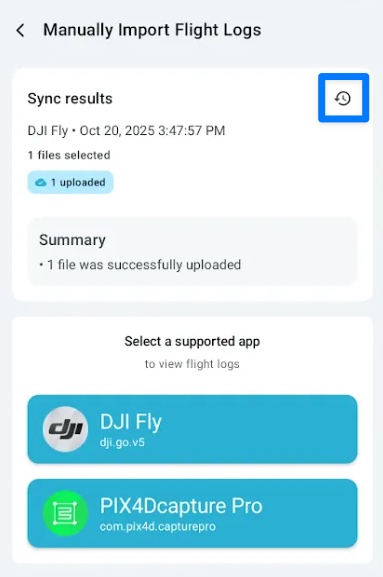
1. To see your upload history, tap Manually Import Flight Logs, then the clock icon to the right of “Sync results”.
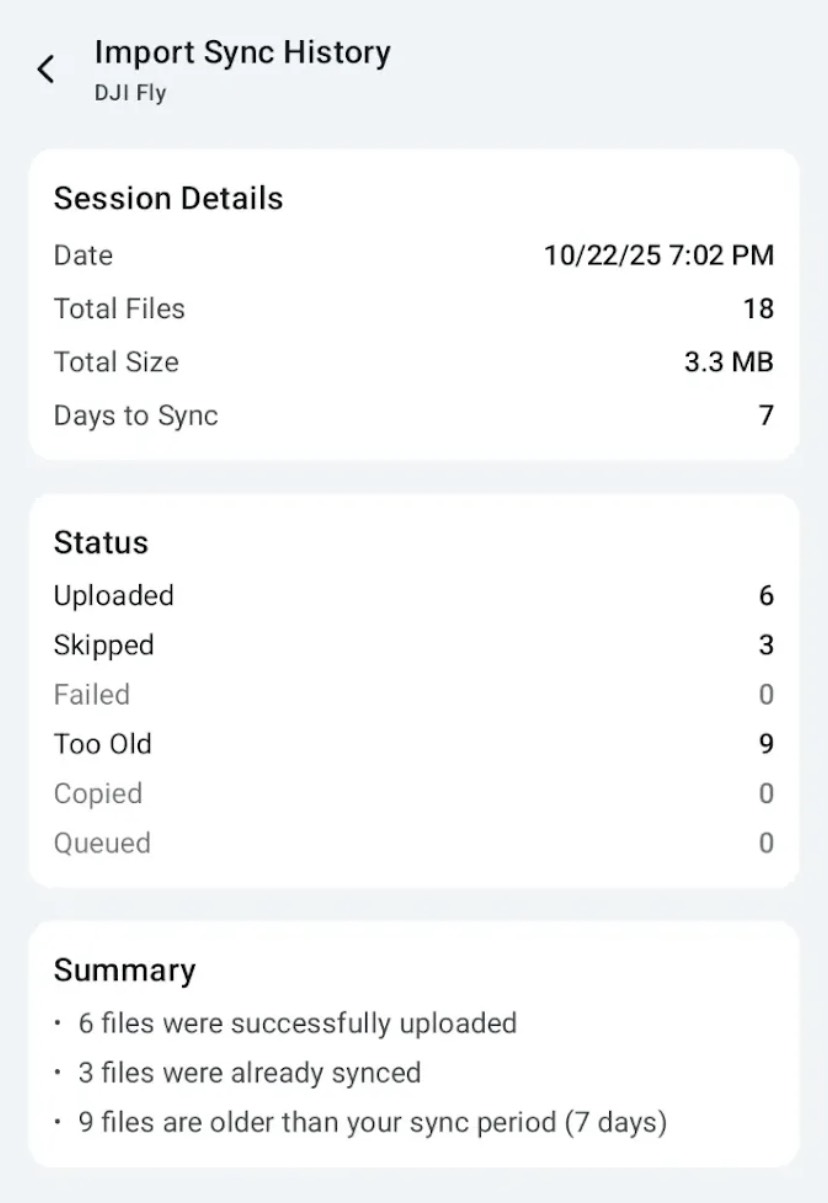
2. To see a breakdown of your most recent sync session, tap Manually Import Flight Logs -> Sync Results.
This will show you the final sync status of each file you selected for upload.
| Status | Definition |
| Uploaded | Successfully uploaded |
| Skipped | Previously synced |
| Too Old | Outside "Days to Sync" time window |
| Copied | Sync in progress |
| Queued | Sync in progress |
| Failed | Sync unsuccessful |
If you consistently see "Failed" uploads, please reach out to us at support@airdata.com
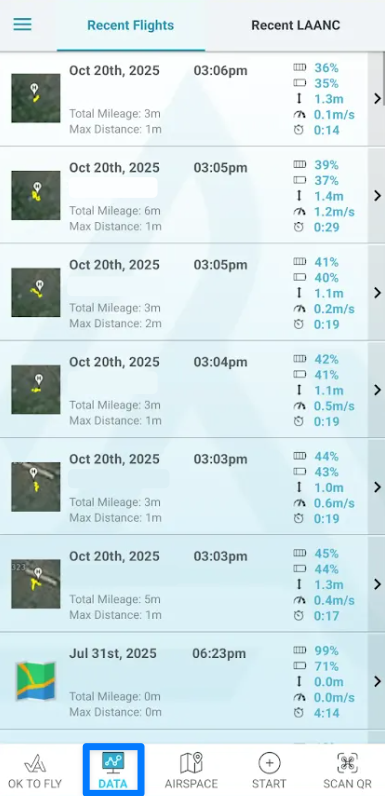
3. You can view uploaded flights in the DATA tab of the AirData mobile app.
| Comment Section | Sort by:
|


Please login to add a comment